Thursday, 8 September 2016

How to get Free Wi-Fi anywhere in the world

Hello Friends, If you are looking for a Free Wi-Fi Hotspots, then you are at the right place. Today, In this post I will teach you how to get free Wi-Fi Hotspots anywhere in the World. In this technique, you will need some useful tools and apps to locate free Wi-Fi Hotspots.

How to get Free Wi-Fi anywhere in the world?

Install Wi-Fi Scanner apps and tools:

It is not necessary to install Wi-Fi Scanner tools in your phone and laptops but sometimes your phone and Laptop's Wi-Fi Scanner fails to give you all the information about your area's Wi-Fi connections. In that case, you will need Wi-Fi scanner apps.


  • For Windows PC: If your Laptop's Wi-Fi is not working properly then you can try this app like WeFi and NetStumbler. Both Apps will detect area's Wi-Fi connections and give you a list of available networks with their channel, strength and security.
  • For Mac: Similarly, For Mac users, if your Wi-Fi is not working properly then you can try this app called iStumbler to generate a list of the nearby hotspots. iStumbler is a free app for Mac users. AirRadar is also an app who detect Wi-Fi Hotspots quickly, but Airadar is a payable app.
  • For Smartphones: In Android, there are lots of free apps which scan Wi-Fi Hotspot For, e.g., Wi-Fi Analyzer. And in iPhone, you can use Wi-Fi Tracker app to search Wi-Fi Hotspot.

Visit the Places that have Free Wi-Fi:

You will get Free Wi-Fi Hotspot at places like McDonald's, public libraries, Airport, Starbucks, Railway stations and many public places. So, If you want Free Wi-F, learn about the places that provide free Wi-Fi and visit them. Hotels, Businesses places, Restaurants, Cafes and Malls also offer you the Free Wi-Fi Hotspots. So, Go there and save your data.

Increase the limits of Free Wifi Hotspots by spoofing MAC address:

In some Malls and Restaurants, there will be a limited time for Free Wi-Fi Hotspots. To increase your limits, spoof your MAC address by using MAC Makeup tool. MAC Makeup app is an app which is used to spoof a new MAC address. Because of this your limited time will increase and you can enjoy the Free Wi-Fi Hotspots.

If you like this post then do share or if you have any query then comment it below.
Sunday, 24 July 2016

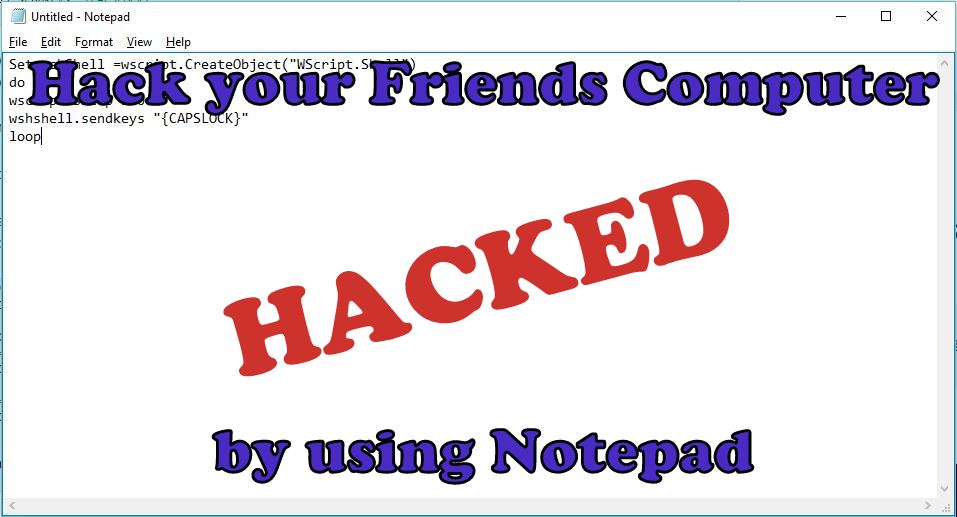
Hack your Friends Computer by doing this Amazing Tricks with Notepad

Notepad is a generic and well-known text editor which comes in all versions of Windows Operating System. Many peoples think it allows you to open and read plain text files but, this is not true, it can do many impressive things which will make your day and from this thing, you can scare your friends or neighbours. Today, In this post I will show you the Best Notepad tricks which you can do and scare your friends and neighbours.

Note: The following tricks will not harm your's computer. However if you want to get out of this tricks, just delete the notepad file and just restart your's computer. Your PC's will usually work as earlier was.

The Amazing tricks which can do with Notepad are:


1. Continuously Toggle On-Off the Caps Lock Button.

This trick will be continuously Toggling On and Off the Caps Lock Button. It will irritate your friends as hell.
  • Open the Notepad by typing notepad in a Search box or by pressing Win+R together and type Notepad in the dialogue box.
  • Copy the below code in the Notepad.
Set wshShell =wscript.CreateObject("WScript.Shell")
do
wscript.sleep 150
wshshell.sendkeys "{CAPSLOCK}"
loop
  • Now, Save the File with a .vbs extension rather than the Standard .txt extension. For eg: caps.vbs.

  • Now, Send this file to your friends and neighbours and ask them to open it.(Note: Do Not open on your Computer either it will affect you).

2. Continuously Open the DVD/CD Drive.


This Trick is my Favourite trick, In this thing, CD/DVD Drive will continuously open.
  • Open the Notepad by typing notepad in a Search box or by pressing Win+R together and type Notepad in the dialogue box.
  • Copy the below code in the Notepad.
Set oWMP = CreateObject("WMPlayer.OCX.7")
Set colCDROMs = oWMP.cdromCollection
do
if colCDROMs.Count >= 1 then
For i = 0 to colCDROMs.Count - 1
colCDROMs.Item(i).Eject
Next
For i = 0 to colCDROMs.Count - 1
colCDROMs.Item(i).Eject
Next
End If
wscript.sleep 4000
loop
  • Now, Save the File with a .vbs extension rather than the Standard .txt extension. For eg: cd.vbs.

  • Now, Send this file to your friends and neighbours and ask them to open it.(Note: Do Not open on your Computer either it will affect you).

3. Fool your's friend by hacking the friends keyboard to make it type something you want continuously.


By this trick, you can make your friend fool by hacking their keyboard.
  • Open the Notepad by typing notepad in a Search box or by pressing Win+R together and type Notepad in the dialogue box.
  • Copy the below code in the Notepad.
Set wshShell = wscript.CreateObject("WScript.Shell")
do
wscript.sleep 100
wshshell.sendkeys “I Hacked your PC.”
loop 
  • Changed the "I Hacked your PC" text and put something else you want.
  • Now, Save the File with a .vbs extension rather than the Standard .txt extension. For eg: hack.vbs.

  • Now, Send this file to your friends and neighbours and ask them to open it.(Note: Do Not open on your Computer either it will affect you).

4. Shut Down the Computer by showing Error message you want.


This trick will shut down your friend's computer and before shutting down, it will show your friends an error message like you want
  • Open the Notepad by typing notepad in a Search box or by pressing Win+R together and type Notepad in the dialogue box.
  • Copy the below code in the Notepad.
@echo off
msg * You fell for it again
shutdown -c “You are too stupid to open this” -s
  • Changed the "You are too stupid to open this" text and put something else you want.
  • Now, Save the File with a .vbs extension rather than the Standard .txt extension. For eg: shut.vbs.

  • Now, Send this file to your friends and neighbours and ask them to open it.(Note: Do Not open on your Computer either it will affect you).
If you like this post, then do share or if you have any query or any problem related to this post then comment it below.

Saturday, 23 July 2016

How to Hide your Drive in Windows by using CMD

Windows Command Prompt is a very Powerful tool to perform some tasks. It is usually used to do a task without using a third-party tool. Today in this post we are going to share another interesting topic on Comand Prompt. Today we are learning how to hide any drive in Windows by using CMD. You can also Hide drive by using a free tool such as DriveHide, but we are not using any third party software to do it same.

How to Hide any Drive in Windows by using Command Prompt?

To know how to hide any drive then, follow the steps given below.


Step 1: Type CMD in search area Box or in Run Dialog Box. Open CMD as run as Administrator.

Step 2: Type Diskpart in the CMD and Hit enter key, then Click YES if you are prompted with User Account Control (UAC) Dialog-box.


Step 3: After that, you will be prompted with new Command Prompt. Type List Volume and hit the enter key, and all the drives will be listed below.

Step 4: Now, Select the drive that you want to hide. Type Select Volume E or Select Volume 3 and hit the Enter Key (here, E is the Drive Letter, and 3 is the Volume Number).

Step 5: Now to Hiding a Drive, type Remove Letter E (Here E is the drive letter that you want to Hide).

Your Drive is Hide Now; you can close the CMD by typing exit command. Now check the drive on your PC.

Before Hiding
After Hiding

How to display the Hidden Drive by using CMD?

To know how to show Hidden Drive then, follow the steps given below.

Step 1: Type CMD in search area Box or in Run Dialog Box. Open CMD as run as Administrator.

Step 2: Type Diskpart in the CMD and Hit enter key, then Click YES if you are prompted with User Account Control (UAC) Dialog-box.

Step 3: After that, you will be prompted with new Command Prompt. Type List Volume and hit the enter key, and all the drives will be listed below.

Step 4: Now, Select the drive that you want to display. Type Select Volume E or Select Volume 3 and hit the Enter Key (here, E is the Drive Letter, and 3 is the Volume Number).

Step 5: Type Assign Letter E and hit the Enter Key to display the Drive.


Now your Drive will be displayed in Explorer.

If you like this post, then do share or If you have any query or any problem then comment it below.


Thursday, 14 July 2016

How to Play Pokemon GO Game


In the last post, I had posted how to download Pokemon GO game in any country, Today, In this post, I will guide you how to play Pokemon Go Game.

What is Pokemon Go?

Pokemon Go is a mobile game for Android and iPhone user. The Pokemon Company and Niantic are a developer of this game. This game aim is to locate, catch, battle and trade Pokemon and encouraged to connect with other nearby Pokemon GO players.

Pokemon Go is a free Game or paid Game?

Pokemon Go is a free app but in this game, you have to buy PokeCoins which will unlock the unique items within in the game. PokeCoins is nothing but a game currency in the Pokemon Go Game.
You can buy PokeCoins at the following prices.

100 PokeCoins: $1.04
550 PokeCoins: $5.24
1200 PokeCoins: $10.50
2500 PokeCoins: $19.70
5200 PokeCoins: $39.42
14500 PokeCoins: $105.14.

Pokemon Go Plus Cost is $34.99, and it will be available soon.

How to Play Pokemon Go?


Select your Avtar

When you install Pokemon Go game, the first thing you need to select the clothing for your Avtar. (Note: Pick Carefully because once you choose the clothing for your Avtar, then there is no way to alter this later).

How to Catch Pokemon?

To catch Pokemon, you have to step out your home and explore the world. If you tap on the Pokemon, Camera will be open automatically, and it will show you a Pokemon somewhere near you. Pokemons are out there, and you need to find them. If your smartphone will vibrate it means, Pokemon is nearby. Take an aim and throw a PokeBall to catch them and finally, the Pokemon is your's (Note: You will have to stay alerted. or it might run away).

Where to search Pokemon?

Pokemon appear near their native environment like If Pokemon is a water type then Pokemon will be found in lakes and oceans. Pokemon will be found at interesting places like historical markers, museums, monuments and art installations.

How to earn Extra Points?

For every Pokemon, you catch you will get 100 XP points and 100 stardust. If you catch a Pokemon which you haven't seen before then, you will get an extra 500 XP, which will be added in the PokeDex. You will get extra XP points if you throw Pokeball perfectly.

How to earn extra PokeBalls?

You can collect more PokeBalls from PokeStops, which are mainly found in towns and cities or interesting places. You can also buy PokeBalls with coins in the Shop.

Catching, and Hatching

As your levels go up, you will be able to catch more powerful Pokemon to complete your Pokedex. You can also hatch Pokemon Eggs based on the distances you walk.

How to train your Pokemon?

To interact with the Gyms, your Level must be above five. Pokemon GO provides you three type of Gyms on the board: Neutral, Rival and friendly. You can also Evolve your Pokemon by providing training For e.g., Charmander evolves to Charmeleon and then Charizard.

What is a PokeBall?

A PokeBall is a ball which uses to catch the wild Pokemon. You can also collect more PokeBalls from PokeSops.

What is a PokeStop?

A PokeStop is a place from which you can easily win rewards by visiting it. In order to access you need to be near the PokeStop. If a blue circle appear, it means you are close enough, and If you visited the PokeStop it would turn to Blue.

What is PokeDex?

The PokeDex is a catalogue of all the Pokemon you have caught yet.

If you like this post, then do share or if you have any query then comment it below or if you have any problem in playing this game then also comment it below.

Wednesday, 13 July 2016

How to download Pokemon Go in any country

From last two weeks, you have been hearing about Pokemon Go Game. Pokemon Go Game is an adventurous game, and it will make your body fit by running and catching the Pokemon. If you have an Android Devices, and it will be available in your Country, then you can officially download Pokemon Go app from Play-Store, but if this game is unavailable in your Country, then you can download the APK file from other sites. Today, In this post we will see how to download Pokemon Go app in any country
Pokemon Go Game is available in America, Australia, NewZealand, Canda, Portugal, France and much more. To know more see the image below.
If you don't live in the above Country, then you have to wait for official launch or Download APK file from the other site.

To Download Pokemon Go Officially, Go to Play-Store and install Pokemon Go.

How to Download Pokemon Go unofficially?


There are two sites to Download Pokemon Go APK

To know How to Download Pokemon Go app from the site follow some steps.

  • Download Pokemon Go APK file from apkpure.com or apkmirror.com
  • If you are on Android phone, then you have first to Switch ONN the Unknow Sources. To Switch ONN the Unknown sources, Go to Settings >> Security >> and allow for the installation of apps from unknown resources.
  • If you are on a PC, then attach your phone via USB Cable and copy the APK file to your phone. 
  • Now, Install the Pokemon Go app and enjoy it.

Note:

  1. Pokemon Go app is a free app, and it is optimised for smartphones, not for tablets.
  2. Compatible with those Android devices which have 2 GB RAM or more and have Android Version 4.4 to 6.0.
  3. Pokemon Go won't work on Android N because Android N is a newly version of Android.
  4. It is not compatible with those Android devices which use Intel Atom processors.
  5. In some devices Application will not work even, they have compatible OS versions installed.
  6. To obtain accurate location you have to connect with a good network.
If you Like this post, then do share or If you have any query related to this topic then comment it below or have any problem to download the app then also comment it below.

Sunday, 3 July 2016

How to Create a Virtual Wi-Fi Hotspot by using CMD

In Today's World Internet Connectivity has become one of the most important things that we need. It would be more helpful when we get a fast internet connection, and it would be the most helpful when we get a Wi-Fi Connectivity. From Windows 7 towards Microsoft includes the virtual Wi-Fi hotspot features. Today I will show you how to create a Virtual Wi-Fi Hotspot on your Laptop by using CMD and without using any third party utility. It will support on Windows 7, Windows 8 and Windows 10.

To know how to create a Virtual Wi-Fi Hotspot on Windows then follow some steps:


Step 1: Open CMD and run as Administrator.

Step 2: Check the Driver is it install or not?

netsh wlan show drivers
If Hosted network supported will be yes, then you can further continue the step


Step 3: To Create a Virtual Wi-Fi

netsh wlan set hostednetwork mode=allow ssid= mywifi key= password
 You can change the SSID name and key
For, e.g.,
ssid= MyRouter
key=123456789

Step 4: To Start a Wi-Fi

Make sure that your Wi-Fi is ONN.
netsh wlan start hostednetwork

Step 5: To Access the Internet

Open Network and Sharing Center >> Ethernet >> Properties >> Click on Sharing Tab >>  Tick on all the Checkboxes and select the Home networking connection from the Drop Down List (Make sure that your Home networking connection is same as your Wi-Fi connection).

Step 6: To Stop a Wi-Fi

netsh wlan stop hostednetwork

Create a Shortcut on Desktop

Create a shortcut to Start Wi-Fi

        Right click on Desktop >> Shortcut
import: netsh wlan start hostednetwork >> next
import: Start Wi-Fi >> Finish

Create a shortcut to Stop Wi-Fi

Right click on Desktop >> shortcut
import: netsh wlan stop hostednetwork >> next
import: Stop Wi-Fi >> Finish

Now you can easily ONN and OFF Wi-Fi.


Here is a Video of it

If you like this post, then do share or if you have any query then comment it below.

Wednesday, 29 June 2016

Bypass the Android devices pattern or password without losing your data

In Today's world, Android operating system is the most used operating system. For every update, Google makes it more secure. If you ever forgot your mobile pattern or password, then you will try to bypass the security. In this case, you will try to reset your mobile, but you will lose your data. Today, In this post I will teach you how to Bypass the Android pattern or password without losing your data,

How to Bypass the Android device pattern or password by two ways

Type I: Bypass the Android devices pattern or password without losing your data:


Step 1: Download Aroma File Manager from this link

Step 2; After downloading Aroma File Manager, move it to your SD card (memory card) via USB Cable or Card Reader.

Step 3: Now, Insert the memory card into your locked Device.

Step 4: Switch off your phone and press power key and volume key up and down together to open Recovery Mode. If you get any problem to go into recovery mode, then google it because different phones have different methods to open Recovery Mode.

Step 5: After entering into Recovery Mode, Scroll up and down by using Volume+ and Volume- buttons and for a select use middle button.

Step 6: After that select "Apply update for SD Card" and give a path to install "Aroma File Manager".


Step 7: After Installing Aroma File Manger, it will open recovery mode.

Step 8: From the Aroma File Manger navigate to settings and click on "Automount all devices on start" and then exit.

Step 9: Repeat Step 6 and Step 7 again.

Step 10: Aroma File Manager will open again

Step 11: Navigate to Data Folder -> System Folder and Find "password.key" or "gesture.key" (password.key for password lock and gesture.key for Pattern lock respectively).

Step 12: Delete any one file and then exit from Aroma File Manager and reboot your Android Device.

Step 13: After Rebooting you will notice that the password or pattern lock is not removed yet. Don't worry, Type any password or draw any pattern to unlock your Android Device. (Note: Remember that password or pattern that you typed or drawn yet).


Type II: Bypass the Android devices pattern or password by doing Factory Reset.


This type is very useful when you don't have a PC or a Laptop.

Step 1: Switch off your phone and press power key and volume key up and down together to open Recovery Mode. If you get any problem to go into recovery mode, then google it because different phones have different methods to open Recovery Mode.

Step 2: After entering into Recovery Mode, Scroll up and down by using Volume+ and Volume- buttons and for a select use middle button. 
Select "Factory Data Reset" option and after that select "Wipe Cache Partition" to wipe cache data.

Step 4: Reboot your device. Now your device will start from the start.

If you like this post then do share or if you have any query then comment it below,

Sunday, 19 June 2016

Share your Wi-Fi Networks and Passwords by using QR Codes

There was a trend where your friends want to get your Wi-Fi password, and they had to type Long and complicated Wi-Fi password, and now your friend has to scan the QR Code to connect with Wi-Fi. Today in this post, I will show you how to share your Wi-Fi Networks and Passwords by using QR Codes.

There are a lot of sites which generates QR Code for Wi-Fi passwords. The QRStuff and ZXing this two QR Code generator website are famous for Wi-Fi password generator. Select proper contain from the drop-down list and Fill ups all the details like SSID (Network Name) and Password and also choose the right encryption type. After filling details, click on Generate button and get your QR Code. From this sites, you can download, print and email QR code directly from the Website.


To connect with Wi-Fi directly by using the QR Code, your friend will need to have a barcode scanner on their phone. There are a lot of Barcode Scanner app on Android select any one of them and scan the QR code which you generated a few seconds ago.

Only IPhone users can't connect to the Wi-Fi directly, but they will be able to see the username and password, which they can copy and paste.

If you like this post, then do share and comment it below or If you have any querries then contact us.

Friday, 17 June 2016

How to Boost your Windows 10 Battery Life

Windows 10 is one of the best user-friendly OS for PCs and Laptops. It is the most polished and different than the previous Windows versions. But, the problem is that the Battery life of Windows 10. Windows 10 Battery life is destitute as compared to previous Windows version. Today, In this post we will learn how to Boost your Windows 10 Battery Life.

To know how to Increase your Windows 10 Battery life then, you have to follow some steps

  • Windows 10 Battery Saver Mode

One of the simplest and easiest ways is a turn ON your Battery saver mode. Windows 10 comes with two power modes the First one is Battery Saver mode and the second one is the default mode. The Battery saver mode helps you to stop sucking your battery, and it reduces the battery usage 20 percent less than the normal mode.

  • Update your Windows while Charging.

Windows keeps on popping out unnecessary notification like update your Windows for better use. So keep the Laptop in charge while updating your Windows. Because you never know how long it takes. So better put in charge.


  • Remove the unnecessary apps

It is also the best technique to improve battery life of Windows 10. Useless Apps keep sucking the battery life of your lappy, better to uninstall those apps which do not come to use in future.

  • Remove the unnecessary programs

Sometimes some programs keep on updating in the background which you are not aware of it, and it not only consume your internet data but also absorb your battery. For improving the battery life, I recommended you that remove the unnecessary programs.

  • Managing the Brightness

Brightness also consumes your battery a lot. So maintain your brightness like when you are watching a movie in a dark room keep your brightness as low as you can and when you are not working on machine keep it dim. Manage the Brightness because keeping the light low in Windows 10 will save a battery life a lot.

  • Keep Wi-Fi, Bluetooth and Other Settings OFF

When you don't need any system settings like Wi-Fi, Bluetooth, Tablet mode and much more than turn OFF the setting, like when you are watching movie Offline then turn OFF Wi-Fi settings. These small things save some battery life on Windows 10.

  • Disconnect Unnecessary peripherals

When we use USB cables, external mouse, SD card, Bluetooth mouse, and external keyboard, it sucks our battery life. All this peripherals device absorb the small amount of battery and make our battery drain fastly. I recommended that disconnect our additional peripheral when it is not in use.

  • Maintain your Desktop and System Drive clean

Remove unnecessary files and application from desktop and C drive too because when you Boot up your PC, Windows 10 loads most of the content from C drive or the drive where Windows is installed. If your C drive is clean then your PC will boot fast and consume less battery and if not then it will consume more.

If you like this post, then do share and comment it below or If you have any query then comment it below or contact us on a contact us page.

Sunday, 12 June 2016

How to Hide file inside an image by using cmd


There are many software which hides files inside the images or hides text inside a picture. Today, we are learning how to hide any file inside an image using cmd. This is a very amazing trick which you don't know about it. You can also do little bit of prank with your friends by using this amazing trick

To see How to Hide Text/Message in an Image by using Steganography go to this link.


In this blog post, we are creating an image file which looks like a standard image but in this image file, you will see hidden files inside it. If you extract that image, then you will get a hidden file. No one can guess that the file is inside an image, you can make fool to anybody.


To know how to hide file inside an image you need to follow some steps:


Step 1: To know clearly the steps, at first create a folder on the desktop named it "hidingfiles" and then put some files which you want to hide.


Step 2: In the next step put one image in that folder as I had done, name it as simple as that with no space because in cmd it will give you a syntax error.(In the image I typed "images" Remember that file must be in JPG format).


Step 3: Compress the file which you want to hide using WinRAR or ZIP. (In the image I want to hide a song, so I compress the songs using ZIP). Once you created an RAR file named the file as simple as that with no space because in cmd it will give you a syntax error.(In the image I typed "hidenfile").


Step 4: Open CMD and run as Administrator as you open the CMD hit enter and locate your folder like if your folder in D drive type d: and if your folder in E drive type e: and hit enter. Then locate the folder by using cd command like "cd folder name" (In this image my folder is in desktop, so I copy the path of that folder and paste it on the cmd).


If you save folder in another drive then check this Screenshots


Line 1: cd C:\Users\Vinay\Desktop\Hidingfiles
Line 2: copy /b images.jpg + hidenfiles.zip images.jpg
press Enter.


Now your original file is copied into your images. Check the file size of your images to know it is copied or not. The image file will be bigger than the previous one. Now your file is hidden inside and image. You can now move the image to any location on your computer or your Pendrive. 

To know how to Extract File from image follow some steps


Step 1: Right Click on an image, open with WinRAR Archiver or 7zFM.exe.


Step 2: Click on Extract and OK (Now your hidden file is extracted).


You can also hide the larger size of a file inside an image.


If you like this post, do share or comment it below and If you have any query or any problem, then please comment it below or contact us on a contact us page.