Thursday, 8 September 2016

How to get Free Wi-Fi anywhere in the world

Hello Friends, If you are looking for a Free Wi-Fi Hotspots, then you are at the right place. Today, In this post I will teach you how to get free Wi-Fi Hotspots anywhere in the World. In this technique, you will need some useful tools and apps to locate free Wi-Fi Hotspots.

How to get Free Wi-Fi anywhere in the world?

Install Wi-Fi Scanner apps and tools:

It is not necessary to install Wi-Fi Scanner tools in your phone and laptops but sometimes your phone and Laptop's Wi-Fi Scanner fails to give you all the information about your area's Wi-Fi connections. In that case, you will need Wi-Fi scanner apps.


  • For Windows PC: If your Laptop's Wi-Fi is not working properly then you can try this app like WeFi and NetStumbler. Both Apps will detect area's Wi-Fi connections and give you a list of available networks with their channel, strength and security.
  • For Mac: Similarly, For Mac users, if your Wi-Fi is not working properly then you can try this app called iStumbler to generate a list of the nearby hotspots. iStumbler is a free app for Mac users. AirRadar is also an app who detect Wi-Fi Hotspots quickly, but Airadar is a payable app.
  • For Smartphones: In Android, there are lots of free apps which scan Wi-Fi Hotspot For, e.g., Wi-Fi Analyzer. And in iPhone, you can use Wi-Fi Tracker app to search Wi-Fi Hotspot.

Visit the Places that have Free Wi-Fi:

You will get Free Wi-Fi Hotspot at places like McDonald's, public libraries, Airport, Starbucks, Railway stations and many public places. So, If you want Free Wi-F, learn about the places that provide free Wi-Fi and visit them. Hotels, Businesses places, Restaurants, Cafes and Malls also offer you the Free Wi-Fi Hotspots. So, Go there and save your data.

Increase the limits of Free Wifi Hotspots by spoofing MAC address:

In some Malls and Restaurants, there will be a limited time for Free Wi-Fi Hotspots. To increase your limits, spoof your MAC address by using MAC Makeup tool. MAC Makeup app is an app which is used to spoof a new MAC address. Because of this your limited time will increase and you can enjoy the Free Wi-Fi Hotspots.

If you like this post then do share or if you have any query then comment it below.
Sunday, 24 July 2016

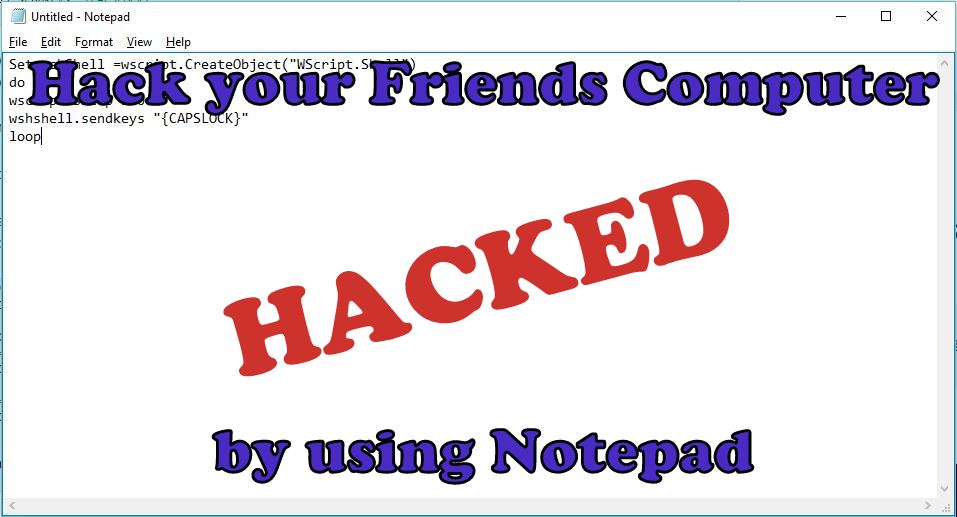
Hack your Friends Computer by doing this Amazing Tricks with Notepad

Notepad is a generic and well-known text editor which comes in all versions of Windows Operating System. Many peoples think it allows you to open and read plain text files but, this is not true, it can do many impressive things which will make your day and from this thing, you can scare your friends or neighbours. Today, In this post I will show you the Best Notepad tricks which you can do and scare your friends and neighbours.

Note: The following tricks will not harm your's computer. However if you want to get out of this tricks, just delete the notepad file and just restart your's computer. Your PC's will usually work as earlier was.

The Amazing tricks which can do with Notepad are:


1. Continuously Toggle On-Off the Caps Lock Button.

This trick will be continuously Toggling On and Off the Caps Lock Button. It will irritate your friends as hell.
  • Open the Notepad by typing notepad in a Search box or by pressing Win+R together and type Notepad in the dialogue box.
  • Copy the below code in the Notepad.
Set wshShell =wscript.CreateObject("WScript.Shell")
do
wscript.sleep 150
wshshell.sendkeys "{CAPSLOCK}"
loop
  • Now, Save the File with a .vbs extension rather than the Standard .txt extension. For eg: caps.vbs.

  • Now, Send this file to your friends and neighbours and ask them to open it.(Note: Do Not open on your Computer either it will affect you).

2. Continuously Open the DVD/CD Drive.


This Trick is my Favourite trick, In this thing, CD/DVD Drive will continuously open.
  • Open the Notepad by typing notepad in a Search box or by pressing Win+R together and type Notepad in the dialogue box.
  • Copy the below code in the Notepad.
Set oWMP = CreateObject("WMPlayer.OCX.7")
Set colCDROMs = oWMP.cdromCollection
do
if colCDROMs.Count >= 1 then
For i = 0 to colCDROMs.Count - 1
colCDROMs.Item(i).Eject
Next
For i = 0 to colCDROMs.Count - 1
colCDROMs.Item(i).Eject
Next
End If
wscript.sleep 4000
loop
  • Now, Save the File with a .vbs extension rather than the Standard .txt extension. For eg: cd.vbs.

  • Now, Send this file to your friends and neighbours and ask them to open it.(Note: Do Not open on your Computer either it will affect you).

3. Fool your's friend by hacking the friends keyboard to make it type something you want continuously.


By this trick, you can make your friend fool by hacking their keyboard.
  • Open the Notepad by typing notepad in a Search box or by pressing Win+R together and type Notepad in the dialogue box.
  • Copy the below code in the Notepad.
Set wshShell = wscript.CreateObject("WScript.Shell")
do
wscript.sleep 100
wshshell.sendkeys “I Hacked your PC.”
loop 
  • Changed the "I Hacked your PC" text and put something else you want.
  • Now, Save the File with a .vbs extension rather than the Standard .txt extension. For eg: hack.vbs.

  • Now, Send this file to your friends and neighbours and ask them to open it.(Note: Do Not open on your Computer either it will affect you).

4. Shut Down the Computer by showing Error message you want.


This trick will shut down your friend's computer and before shutting down, it will show your friends an error message like you want
  • Open the Notepad by typing notepad in a Search box or by pressing Win+R together and type Notepad in the dialogue box.
  • Copy the below code in the Notepad.
@echo off
msg * You fell for it again
shutdown -c “You are too stupid to open this” -s
  • Changed the "You are too stupid to open this" text and put something else you want.
  • Now, Save the File with a .vbs extension rather than the Standard .txt extension. For eg: shut.vbs.

  • Now, Send this file to your friends and neighbours and ask them to open it.(Note: Do Not open on your Computer either it will affect you).
If you like this post, then do share or if you have any query or any problem related to this post then comment it below.

Wednesday, 29 June 2016

Bypass the Android devices pattern or password without losing your data

In Today's world, Android operating system is the most used operating system. For every update, Google makes it more secure. If you ever forgot your mobile pattern or password, then you will try to bypass the security. In this case, you will try to reset your mobile, but you will lose your data. Today, In this post I will teach you how to Bypass the Android pattern or password without losing your data,

How to Bypass the Android device pattern or password by two ways

Type I: Bypass the Android devices pattern or password without losing your data:


Step 1: Download Aroma File Manager from this link

Step 2; After downloading Aroma File Manager, move it to your SD card (memory card) via USB Cable or Card Reader.

Step 3: Now, Insert the memory card into your locked Device.

Step 4: Switch off your phone and press power key and volume key up and down together to open Recovery Mode. If you get any problem to go into recovery mode, then google it because different phones have different methods to open Recovery Mode.

Step 5: After entering into Recovery Mode, Scroll up and down by using Volume+ and Volume- buttons and for a select use middle button.

Step 6: After that select "Apply update for SD Card" and give a path to install "Aroma File Manager".


Step 7: After Installing Aroma File Manger, it will open recovery mode.

Step 8: From the Aroma File Manger navigate to settings and click on "Automount all devices on start" and then exit.

Step 9: Repeat Step 6 and Step 7 again.

Step 10: Aroma File Manager will open again

Step 11: Navigate to Data Folder -> System Folder and Find "password.key" or "gesture.key" (password.key for password lock and gesture.key for Pattern lock respectively).

Step 12: Delete any one file and then exit from Aroma File Manager and reboot your Android Device.

Step 13: After Rebooting you will notice that the password or pattern lock is not removed yet. Don't worry, Type any password or draw any pattern to unlock your Android Device. (Note: Remember that password or pattern that you typed or drawn yet).


Type II: Bypass the Android devices pattern or password by doing Factory Reset.


This type is very useful when you don't have a PC or a Laptop.

Step 1: Switch off your phone and press power key and volume key up and down together to open Recovery Mode. If you get any problem to go into recovery mode, then google it because different phones have different methods to open Recovery Mode.

Step 2: After entering into Recovery Mode, Scroll up and down by using Volume+ and Volume- buttons and for a select use middle button. 
Select "Factory Data Reset" option and after that select "Wipe Cache Partition" to wipe cache data.

Step 4: Reboot your device. Now your device will start from the start.

If you like this post then do share or if you have any query then comment it below,

Sunday, 19 June 2016

Share your Wi-Fi Networks and Passwords by using QR Codes

There was a trend where your friends want to get your Wi-Fi password, and they had to type Long and complicated Wi-Fi password, and now your friend has to scan the QR Code to connect with Wi-Fi. Today in this post, I will show you how to share your Wi-Fi Networks and Passwords by using QR Codes.

There are a lot of sites which generates QR Code for Wi-Fi passwords. The QRStuff and ZXing this two QR Code generator website are famous for Wi-Fi password generator. Select proper contain from the drop-down list and Fill ups all the details like SSID (Network Name) and Password and also choose the right encryption type. After filling details, click on Generate button and get your QR Code. From this sites, you can download, print and email QR code directly from the Website.


To connect with Wi-Fi directly by using the QR Code, your friend will need to have a barcode scanner on their phone. There are a lot of Barcode Scanner app on Android select any one of them and scan the QR code which you generated a few seconds ago.

Only IPhone users can't connect to the Wi-Fi directly, but they will be able to see the username and password, which they can copy and paste.

If you like this post, then do share and comment it below or If you have any querries then contact us.

Thursday, 19 May 2016

Amazing YouTube tricks

YouTube is Global Video sharing Website. This Site allows users to upload, view, comment, share, and rate on videos. Now, YouTube became an indispensable part of our lives.
While YouTube is very flexible to watch videos, but there are some limitations like you can't download videos directly from the site, you can't listen only audio, you can't skip random advertisement directly. If you are less than 18, then you can't watch some adult videos on YouTube. Today, In this post we will see some tricks like how to Bypass the Age restriction, how to download video and how to skip Add and much more.

1. How to Download Youtube Video


In YouTube, we can't download videos directly from the site. To download videos we have to go from various sites and applications. It's quite irritating to download a youtube video from various site or application. Here is some trick to download video easily from youtube.
In the URL, you have to put "ssyoutube" in place of "youtube" and it will redirect to another site automatically where you can easily download videos in any quality.


2. How to Bypass the Age Restriction

If you are less than 18, then you can't watch some adult videos on YouTube. To Bypass, the age Restriction here is some trick.
In the URL, you have to put "nsfwyoutube" in place of "youtube" and it will redirect to another site where you can watch that video without any age restriction.


3. How to Block YouTube Advertisement

Sometimes adds are very annoying too. Suppose if you are watching a video in between adds are displayed it is very irritating to wait some minutes to continue your video. To skip this add in YouTube Video here is some trick.
In the URL, you have to put "youtubeskip" in place of "youtube" and it will redirect to another site where you can watch that video without any adds.


4. How to play video on loop

If you like some video on YouTube and want it to play on loop then here is some trick to play video on loop.
In the URL, you have to put "listenonrepeat" in place of "youtube" and it will redirect to another site where you can play a video on loop.


5. How to Bypass Country Restrictions
In some countries, some videos are banned. To Bypass the country restrictions here is some trick.

Here is normal Youtube Link
https://www.youtube.com/watch?v=Q2qoZBQGdks

In the URL, you have to copy the red code of your video and paste it. So that the URL look like this.
https://www.youtube.com/v/Q2qoZBQGdks


6. How to convert videos into GIF images

Here is some trick to convert videos into gif images
In the URL, you have to put "gifyoutube" in place of "youtube" and it will redirect to another site where you can convert videos into gif image.


7. How to download a YouTube audio
In YouTube you can't listen only audio of that video. But, By using this trick you can listen only audio of that video.
In the URL, you have to put "listentoyoutube" in place of "youtube" and it will redirect to another site where you can only listen audio.


If you like this post please do share and comment it below or If you have any problem or any querries then comment it below or contact us on contact us page.


Monday, 15 February 2016

Use Whatsapp as a Search Engine and Wikipedia by activating Whatsapp Bot

Whatsapp is the most popular messaging apps. Whatsapp has new features and this features could be used to get important information in the form of news, Wikipedia, dictionary, Sports, etc. Today I will teach you how to use Whatsapp as a Search Engine and Wikipedia by activating WhatsApp bot. WhatsApp Team has not developed this features, this feature is developed by third party organisations.

WhatsApp used by billions of people to stay in touch with people and this app use it as multimedia and group messaging platform. We saw that last year WhatsApp has introduced a new feature called WhatsApp call. In Today post, we will create a WhatsApp bot that will bring search engine like features. This feature was created by the Third party called Duta and it allows us to access some internet features on our Whatsapp without opening our browser. This feature works automatically.

From this Whatsapp Bot features, we can get live news updates, finances, funny jokes, Train Status, Sports news, Weather news and information on any topic from Wikipedia and many more. This Bot features only works for Indian numbers.


How to get services of WhatsApp Bot by Duta or How to activate WhatsApp Bot?

It is very easy to get services of WhatsApp Bot by Dutta. To get services follow the steps below.

  1.  We need to create a duta contact on our mobile. To create a duta contact click on this link https://duta.in/ .
  2. If you don't want to go above link then adds this number 9043735948 to create a contact and write any name of  your choice to start the Whatsapp bot (Here name of the Whatsapp Bot is " Bot").
  3. Now open your WhatsApp app and create a new group and add the created Bot contact to this group (Here name of the Group is "WhatsApp Gang").
  4. We are now ready to use. We can now add more friends and family members to this group and enjoy the service of Whatsapp bot on your own.

Codes of WhatsApp to use Wikipedia, Fashion, Dictionary, Finance, News, service and many more.

  1. Type Wiki SEARCHTERM and send to the group to get Wikipedia information.
  2. Type +NEWS and sends to the group to join English News channel and to Unsubscribe the channel anytime type -NEWS and sends to a group. 
  3. To know the meaning of a word type +DICT WORD and send to a group.
  4. Type +FINANCE  and sends to the group to join Market news channel and to Unsubscribe the channel anytime type -FINANCE and sends to a group. 
  5. To Play General Knowledge quiz type +GK and send to a group.
  6. Type +CRICKET and sends to the group to join Cricket channel and to Unsubscribe the channel anytime type -CRICKET  and sends to a group.
  7. Type +WEATHER <pincode> and sends to the group to join Weather channel.
  8. To know Train Status type +TRAIN <number> and sends to a group.
If you like this post please do share or comment it below.
If you have any problem related to this post please comment it below or Contact us on Contact us page.

Thursday, 14 January 2016

Remote Mouse-Turn your android devices into your wireless mouse and keyboard

Remote Mouse


By Remote Mouse, you can turn your android devices into your wireless mouse and keyboard. It is very helpful in real life.
For eg. Suppose you are sitting on a bed and watching Movie on your PC or laptop and you want to change movie or want to increase or decrease volume and you don't want to get up from bed then this app is best for controlling your PC and Laptop. This app turns your mobile or tablet into a set of wireless mouse and keyboard. 

To convert your mobile into a remote mouse and keyboard, all you need is to install an app called Remote Mouse on your smartphone. There are two versions of Remote Mouse free and paid pro versions.

Also, Read How to access other android devices with your device

To use Remote Mouse you have to follow some steps.

  • Download and install Remote Mouse from their store for Android user, go to this link and Window user, go to this link and Apple user, go to this link.
  • Download and install Remote Mouse Server applications for Mac and Windows from here.
  • Connect your Mobile device with your PC or Mac to the same Wi-Fi network.
  • Find IP address and QR code by opening the Remote mouse app in your PC.
  • On your Smartphone open Remote mouse app and connect it to PC by entering it with IP address or QR code.
  • After connection, you will easily navigate your PC with your device.


Features of Remote Mouse

  • Fully simulated Mouse:  By this features you can easily move your mouse anywhere.
  • Magic Trackpad: By this features you can write into your desktop from your smartphones.
  • Multi-Touch Gestures: By this features, you can Zoom in, Zoom out, scroll up, down, left, right.

  • Application Launcher and Switcher: By this features, you can easily switch to another app easily.
  • Shut Down / Sleep / Restart /Log Off Remotely: By this features, you can easily Shut Down / Sleep / Restart /Log Off by your device.
  • Remotely Typing with Voice
  • Adjusting Volume or changing with device Buttons.
  • Media Remote Panel.
  • Compatible with Windows XP, Vista, 7, 8, 10, MAC OSX 10.5+
  • Password protection and many more.

Let's talk about Setting

  • The most important setting in this app is left handed. For eg. If you are left handed no problem, in this app there is also the special setting for left-handed people, which make more compatible.
  • You can adjust your Tracking speed.
  • You can adjust your Scrolling speed.
  • You can ON or OFF Two Finger Scroll, Secondary Click, Zoom in or Zoom Out, Move a Window, Natural Scrolling and many more.
  • You can select any languages and Change Wallpaper.
Use this app and make your life more Compatible by accessing PC using Smartphones.
If you have any problem in connecting or can't access PC from your device comment it below or Contact us on Contact page or if you like this post then comment it and share it.

Wednesday, 6 January 2016

Make your pendrive bootable by two way

There is always two way to solve any problem easy way or hard way. Here also to make Pendrive bootable there is a two-way easy way and the hard way. Using Software is the easiest way and Using CMD is the hardest way to make Pendrive bootable.

To create a Pendrive Bootable, you need an ISO image of that Operating System 

1. By using Software

     By using software is the easiest way to make your Pendrive bootable.

How to make USB drive Bootable?

To make USB drive bootable follow some steps
  • Click here to Download Rufus application.
  • Click and Run the app as administrator.
  • Once your app is open, Plugin your USB drive like Pendrive into your PC or laptop.
  • Then in Format options Check "Create a bootable USB disk using" and select "ISO image" and then select ISO image of any Windows operating system that you want to install.

  • Click on "Start" and wait for processing, it will take a time to create Bootable USB drive.
  • Click on close option.
You have now a Bootable USB drive, you can now easily install any operating system by this bootable USB drive that you just created.


2. By using CMD

      By using CMD is the hardest way to make a USB drive bootable, but the advantage of this type is that you can make USB drive bootable without any software.

How to make USB drive Bootable?

To make USB drive bootable follow some steps.

  • Plug in your USB drives to your PC or laptops.
  • Open Command prompt as an administrator.
  • By typing"diskpart" in your Command Prompt, it will open disk management utility.
  • After that, To display the connected disks that are available on your system type "list disk" in your Command Prompt and hit enter.
  • Select disk which you want to make bootable, to do that type "select disk x", where x is the drive no or drive letter of your USB drive and hit enter.
  • To delete all data from the USB drive type "clean" in Command Prompt and hit enter. All the data of your USB drive will be deleted by this command.
  • Now, you will need to create a bootable partition on the USB drive, to do that type "create part pri" in Command Prompt and hit enter.

  • After creating a partition, you have to select that partition that you just created, Type "select part 1" in Command Prompt  to select a partition and hit enter.
  • Type "active" in Command Prompt and hit enter to active current partition.
  • You can format partition by any way by NTFS or FAT32, to format the partition by NTFS type"format fs=ntfs quick" in Command prompt and hit enter or to format the partition by FAT32 type "format fs=fat32 quick" in Command prompt and hit enter.
  • Type "exit" and hit enter.
  • Finally, Copy all the files of your Windows operating system that you want to install or ISO image of Windows and paste it inside your USB drive.
Finally, Your Pendrive or USB drive  are booted without any software.

How to use Bootable Pendrive?

Plug in your USB drive to your PC or Laptops and make sure your BIOS is all setup and now you should be able to easily Install Windows Operating System using Bootable USB drive that you just created.

I recommend that go to easy way to make Pendrive Bootable, it is easy to use. 
If you have any problem or any query comment it below or do share if you thought this post is helpful.